




ML-1660
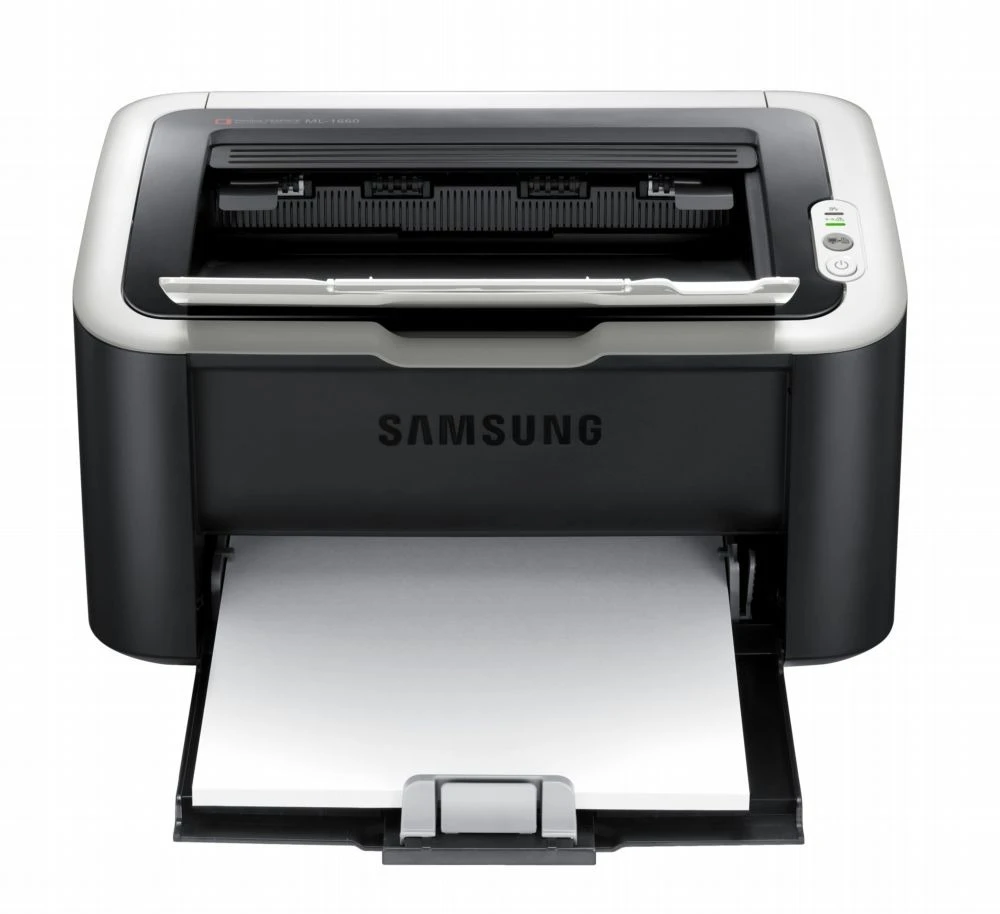
The Samsung ML-1660 is one of the smallest laser printers Samsung ever made, a palm-sized monochrome unit built for dorm rooms and crowded desks. It prints crisp black-and-white pages while barely occupying more space than a shoebox.
It takes a single cartridge, the MLT-D104S. We stock it as a budget-friendly compatible and as a genuine Samsung OEM cartridge, both shipping fast from Clever Supplies.
Toner Cartridges for ML-1660
This printer works with the following toner cartridges:
- Samsung MLT-D104S
More Samsung Printers
- ML-1661
- ML-1665
- ML-1666
- ML-1675
- ML-1860
- ML-1861
- ML-1864
- ML-1865
- SCX-3200
- SCX-3201
- SCX-3205
- SCX-3206
- SCX-3210
- SCX-3217
- SCX-3218
- ML-1660K
- ML-1660N
- ML-1661K
- ML-1665K
- ML-1667
- ML-1670
- ML-1865W
- SCX-3200K
- SCX-3200W
- SCX-3205W
- SCX-3205WK
- SCX-3210K
- SCX-3201G
- SCX-3205K
- ML-1676
- ML-1866
- SCX-3206W
Frequently Asked Questions
How should I store paper for use in my ML-1660, and what paper conditions cause problems before I blame the cartridge?
On humid days the culprit is often the paper stack, not the MLT-D104S — moisture changes how every sheet behaves. If problems appear, test with a few sheets straight from a fresh, sealed ream — if quality returns, the old paper was damp. Fresh, dry paper lets the ML-1660 show what it can really do.
What is the cleanest way to replace the MLT-D104S in the ML-1660, and where does the used cartridge go the first time?
Keep the old cartridge upright as you remove it, because the waste chamber inside can dump powder if you flip it. If toner escapes, vacuum it with a toner-rated filter or wipe with a dry cloth; never use a damp cloth or regular vacuum on a big spill. That routine keeps both your hands and your ML-1660 clean.
Why does toner wipe off the page on my ML-1660 — could the paper type be the cause even with a new MLT-D104S?
When toner sits on the surface instead of melting into the fibers, the fuser — the hot roller at the ML-1660's output — is the prime suspect. Envelopes and labels are the usual victims of wrong media settings, so confirm the driver matches the tray contents. Match the setting to the paper before suspecting hardware — it fixes most cases.