




SL-M2820DW
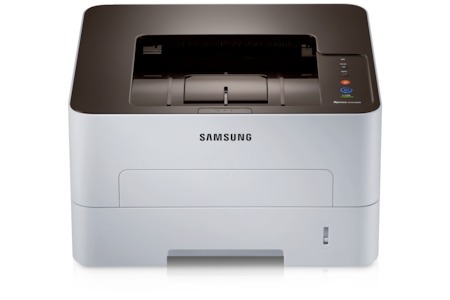
Duplexing and wireless arrive together in Samsung's SL-M2820DW, a workgroup mono laser that prints two-sided and answers to the whole office over Wi-Fi. Paper savings and cable-free placement in one machine.
It feeds on the MLT-D115S or the longer-running MLT-D115L. Compatible cartridges keep per-page costs friendly; genuine OEM cartridges keep it factory-original. Fast shipping from Clever Supplies.
Toner Cartridges for SL-M2820DW
This printer works with the following toner cartridges:
- Samsung MLT-D115S
- Samsung MLT-D115L
More Samsung Printers
- SL-M2620
- SL-M2670
- SL-M2670FN
- SL-M2820
- SL-M2820ND
- SL-M2830
- SL-M2830DW
- SL-M2870
- SL-M2870FW
- SL-M2880
- SL-M2880FW
- SL-M2620D
- SL-M2670N
- SL-M2870FD
- Xpress M2620
- Xpress M2670
- Xpress M2820
- Xpress M2870
- Xpress M2880FW
- Xpress M2830 DW
- Xpress SL-M2620
Frequently Asked Questions
Why would the SL-M2820DW suddenly start printing lighter than usual even though it was fine last week?
A cartridge nearing empty is the most common cause, but drum wear on the SL-M2820DW can mimic low toner exactly. When a new MLT-D115S does not solve it, inspect the drum surface for a worn, shiny look or visible scoring, which signals it is time for a fresh imaging unit. Matching the symptom to the right consumable saves both time and money.
Text from my SL-M2820DW smudges when I rub it, and how do I tell which part is failing on plain paper?
When toner sits on the surface instead of melting into the fibers, the fuser — the hot roller at the SL-M2820DW's output — is the prime suspect. First check the paper-type setting matches the loaded stock; heavy or glossy paper on a plain-paper setting under-fuses every time. Rule out the simple causes and the real culprit stands out clearly.
Can I see the remaining toner on the SL-M2820DW without printing anything, and how accurate is the reading without opening it up?
The most reliable check is the supplies status page, which the SL-M2820DW can print from its menu without a computer. The low-toner warning typically appears as a panel message or a pop-up from the print driver when the cartridge nears empty. Make it routine and you will always print with toner to spare.