




ML-2160
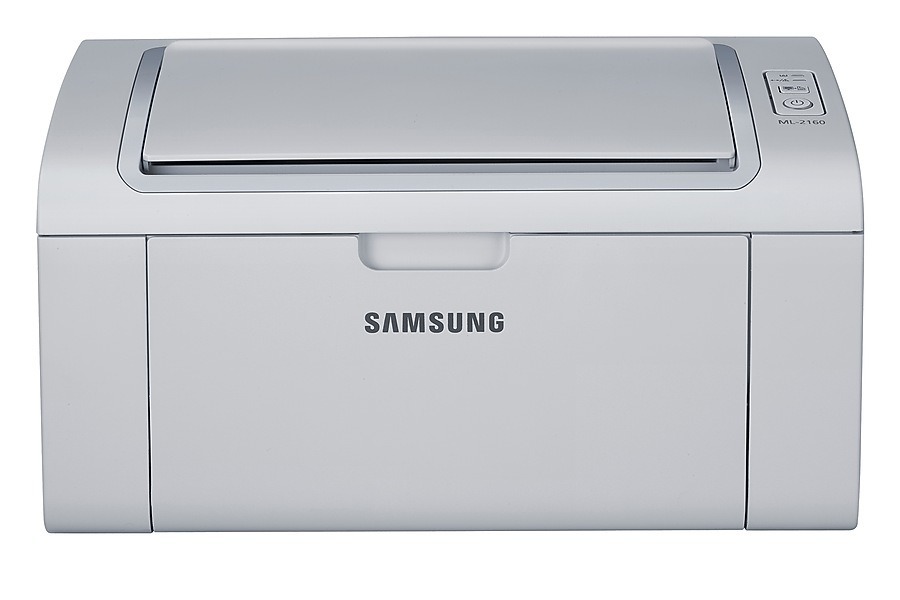
The Samsung ML-2160 is a no-frills monochrome laser from the early 2010s, built for desks where printing is a utility rather than a project. It takes up little room, wakes quickly and turns out clean black-and-white pages for schoolwork, invoices and everyday documents. Its cartridge is the compact MLT-D101S, and that one code — shared across a wide family of Samsung machines — is the only supply this printer ever asks for.
Small printers like this one tend to live wherever they land: a student's desk, a home-office corner, the counter of a small shop. They are rarely anyone's main responsibility, which is precisely why a one-cartridge supply story suits them. There is no color set to balance and no second consumable to track; when pages fade, the answer is always the same single swap.
Toner Cartridges for ML-2160
| Cartridge | Color | Page Yield |
|---|---|---|
| ML-2160 | Black | See product page |
| MLT-D101S | Black | See product page |
| MLT-D101S — 3 Pack | Black | See product page |
| ML-2160 — 5 Pack | Black | See product page |
| MLT-D101S Premium Quality — 5 Pack | Black | See product page |
Which cartridge should you buy?
Listings named for this printer and listings named for the MLT-D101S are the same cartridge, so the choice is purely how many to keep. A single fits a lightly used desk printer. The 3 Pack is the comfortable middle ground for a home office that prints weekly — a spare is always in the drawer. Heavy users, and anyone sharing the printer across a household, can step up to a 5 Pack in the standard or Premium Quality line and stop thinking about toner for long stretches at a time.
Chip, toner and everyday use
The ML-2160 reads its cartridge through a chip, and most recognition problems trace back to two simple things: a cartridge that is not fully seated, or protective tape left behind at installation. Power the printer down, lift the cartridge out, check that every seal is gone and click it firmly back into place before judging the cartridge itself. Keep spares sealed in a drawer rather than on a sunny shelf, and a stored cartridge will print like a fresh one when its turn comes.
Frequently Asked Questions
My computer cannot detect the ML-2160 — where do I start?
If the operating system cannot reach the manufacturer's installer, it substitutes a generic class driver that leaves out features such as toner-level reporting. Installing the official Samsung driver restores full control over quality and supply status. Restart the printer after changing drivers so the print queue clears.
The printer shows cartridge warnings right after a firmware update — is the update to blame?
A toner error appearing just after both an update and a fresh MLT-D101S install almost always means the cartridge is not fully seated or a seal was left on. Switch off, remove the cartridge, clear any remaining tape, reinstall it firmly, and the warning should clear when the printer powers back up.
The ML-2160 cleared its jam but now prints blank pages — why?
Try the printer's own test page from its panel, which bypasses the computer entirely. If that page prints correctly, the fault sits on the computer side — a bad driver can produce blank pages despite a full cartridge — so reinstall the model-specific Samsung driver.
Does the same cartridge fit the other printers in this family?
Yes. The D101S code runs across Samsung's ML printers, SCX multifunction models and SF fax machines of the same generation, which is why the family list below is so long. One spare on the shelf can rescue any of them.
More printers that use the same cartridges
Few Samsung cartridges cover as much ground as this one — the full list of models sharing it: ML-2160W, ML-2161, ML-2164, ML-2164W, ML-2165, ML-2165W, SCX-3400, SCX-3400F, SCX-3400FW, SCX-3401, SCX-3401FH, SCX-3405, SCX-3405F, SCX-3405FW, SCX-3405W, SCX-3406, SCX-3406HW, SCX-3406W, SCX-3407, SF-760, SF-760P, SF-761, SF-761P, Samsung-MLTD101S.