




Printer Printing Problems: Streaks, Faded Prints, Spots & How to Fix Them
Oct 22nd 2026
Your printer was fine yesterday. Today every page has lines down it, or the text looks washed out, or there are dots marching down the margin in perfect formation. Print quality problems feel random, but they almost never are: each defect pattern points at a specific part, and most of them you can diagnose in ten minutes with nothing but a test page and a ruler.
This guide works symptom by symptom. Find yours, run the test, and you will know whether the fix is two minutes of cleaning, a setting, a cartridge, or a part — before you spend anything.
Step zero: print a test page first
Never diagnose from a random document. A document mixes fonts, images, and colors, so you cannot tell what the printer added and what was already in the file. Print a clean test page instead: it separates the colors, shows gradients, and repeats the same elements down the page — which is exactly what makes defect patterns visible and measurable.
Use our free printer test pages — black, color, and diagnostic versions. Print the one that matches your symptom (color problems need the color page; black streaks need the black page), and keep it beside you for the tests below.
Streaks and lines down the page

What you see: vertical lines or bands running the length of the page, in the direction the paper travels. They may be black, white (missing print), or one color.
Most likely cause: something is touching or blocking the drum surface as it turns — a scratch on the drum, debris or a label stuck to it, or a dirty transfer roller. On inkjets, streaks usually mean a clogged or misaligned printhead instead.
Run this test: print the same test page three times in a row. If the streak sits in exactly the same position every time, the cause is a fixed point in the paper path — the drum or a roller. If it moves or changes, look at the cartridge itself.
Fix, in order:
- Remove the cartridge (and the drum unit, if your printer has a separate one) and look at the drum surface under bright light. A visible scratch, nick, or a shiny worn band means the drum is done — cleaning will not repair a scratch. If your printer uses a separate drum, replacing the drum unit is the fix; many owners save by choosing a drum-and-toner set when the toner is also low.
- No scratch? Wipe the drum gently with a dry, lint-free cloth — never touch it with bare fingers and never use liquids; skin oil prints forever. Reinstall and reprint.
- Streak still there? Print 5–10 blank pages. Loose toner and paper dust often clear themselves this way.
Replace the part when: the streak is identical on every page after cleaning, or the drum surface is visibly damaged.
Faded or light prints

What you see: text is grey instead of black, whole page looks weak, or one side of the page is lighter than the other.
Most likely cause: the cartridge is low or its toner is unevenly distributed — or a print-density or toner-save (EcoMode) setting is on. One-sided fading usually means the cartridge, not the printer.
Run this test: take the cartridge out and rock it gently side to side five or six times to redistribute the toner, then reprint the test page. If the print comes back dark, the cartridge was simply running low and settling — you have some pages left, but start shopping.
Fix, in order:
- Rock the cartridge as above.
- Check the driver and the printer menu: turn off EcoMode / toner-save, set density to default.
- Still light after rocking? The toner supply is exhausted — a fresh cartridge is the fix (for example, a high-yield compatible cartridge costs far less per page than the standard-yield one it replaces).
One-sided fading that survives a new cartridge points at the transfer roller or a failing laser/scanner window — clean the glass strip inside the printer (your manual shows where) before buying parts.
Spots and dots that repeat down the page
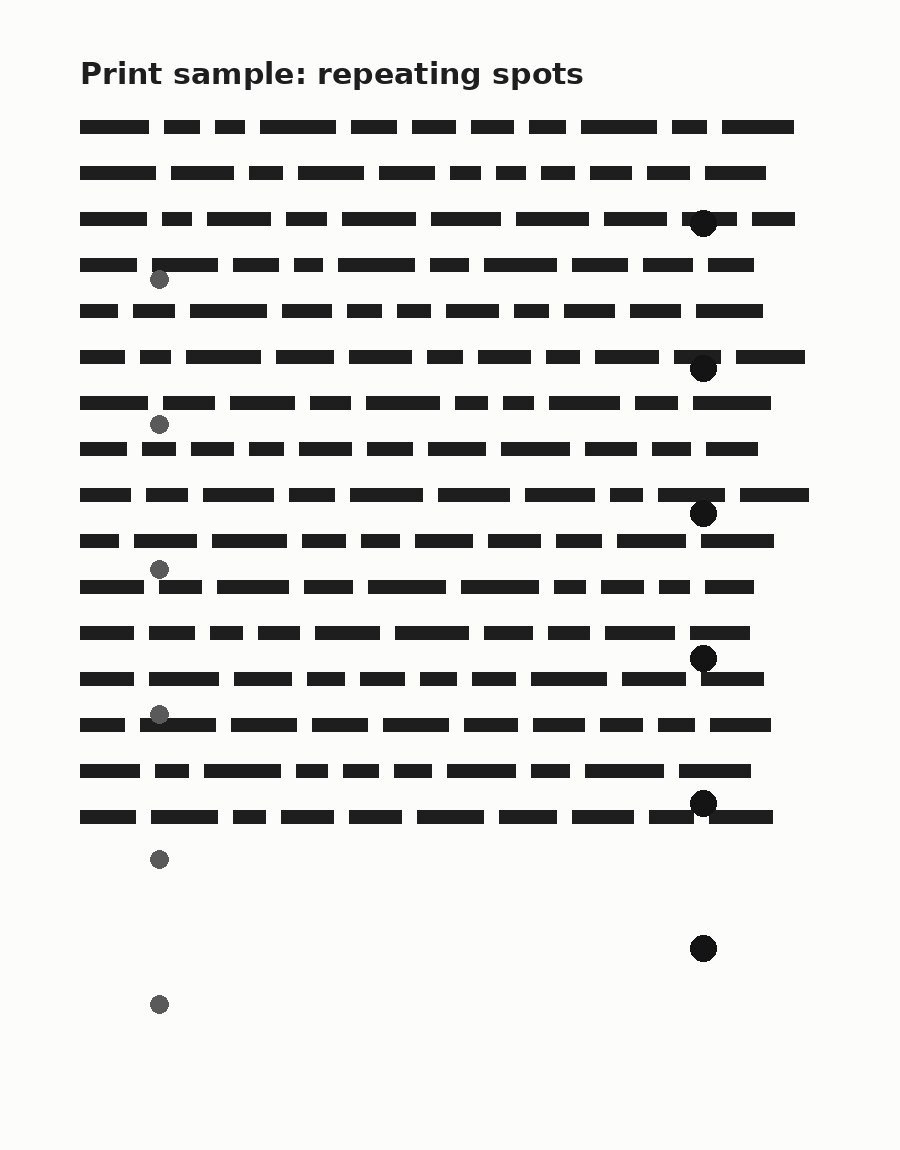
What you see: the same spot, smudge, or mark appears again and again down the page, at regular intervals.
Most likely cause: a mark on a rotating part. Every roller and drum repeats its defect once per revolution, so the spacing between repeats is a fingerprint that names the part.
Run this test — the ruler test: measure the distance between two identical spots, center to center, in millimeters. Then match it:
| Repeat distance | Part to inspect |
|---|---|
| About 75–95 mm (roughly 3–3.7 in) | Drum (photoconductor) |
| About 37–40 mm (roughly 1.5 in) | Developer / magnetic roller in the cartridge |
| About 55–60 mm (roughly 2.2 in) | Transfer roller |
| About 90–95 mm | Fuser roller |
These are typical ranges, not exact specifications — diameters vary by model. Many manufacturers publish an exact repetitive-defect ruler for each printer; the method is the same.
Fix: inspect the named part. A spot on the drum that wipes off with a dry lint-free cloth was debris; a pit or dent in the surface is permanent — replace that unit. If the distance matches the cartridge's developer roller, the fix is a new cartridge. If it matches the fuser, that is a service part — weigh the printer's age before paying for the repair.
Grey background haze, smearing, and ghost images

What you see: the white parts of the page look dirty grey; or toner rubs off when you touch it; or a faint copy of something from higher up the page (or the previous page) shows up again below.
Most likely causes:
- Grey haze everywhere: the drum is reaching end of life, or the cartridge is overfilling the page with toner. Try a known-good cartridge first — if the haze stays, it is the drum.
- Toner smears or flakes off: the fuser is not heating properly, or the paper type setting is wrong. Heavy paper on a plain-paper setting under-fuses every time. Set the driver to the paper you actually loaded before suspecting hardware.
- Ghost image repeating below: classic drum or fuser wear — measure the repeat distance with the ruler test above to tell which.
Color problems: one color missing or wrong
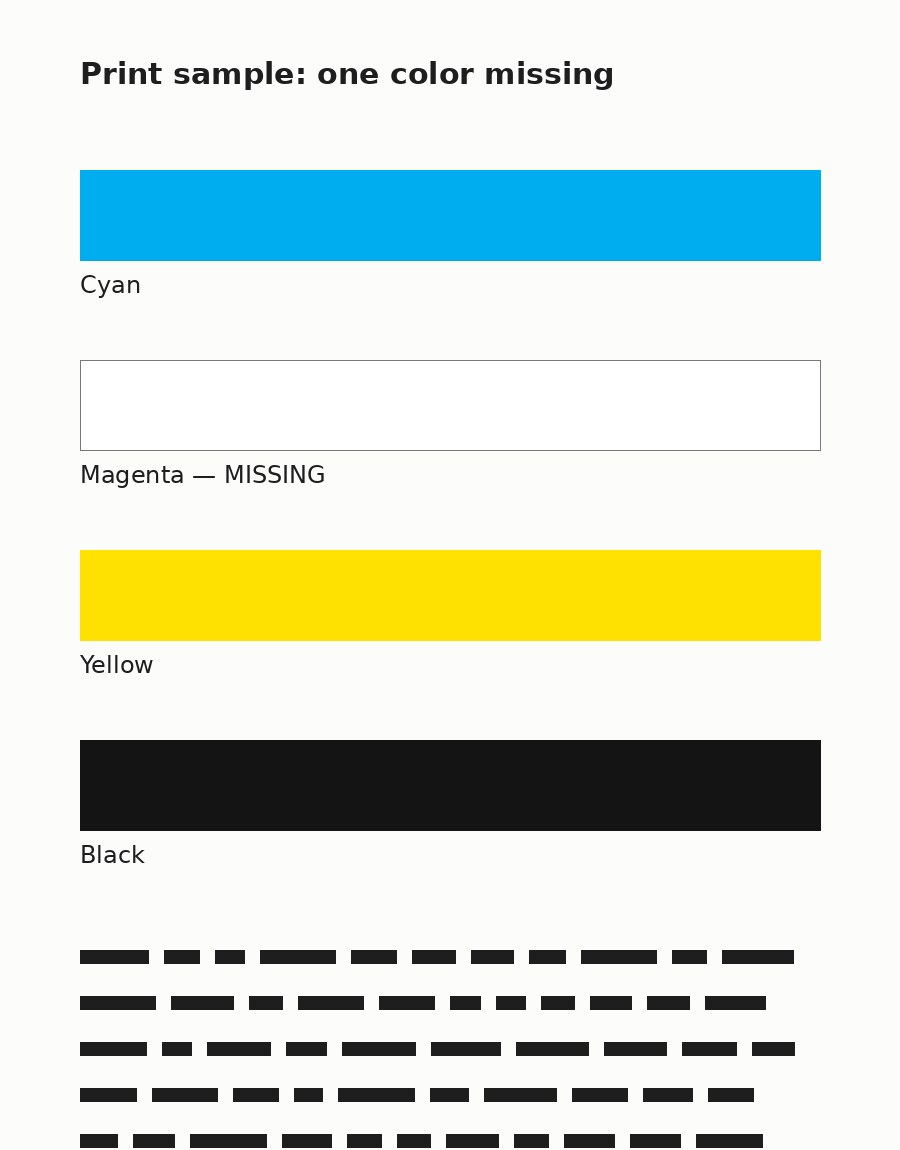
What you see: prints come out too magenta, or blue is missing entirely, or one color is streaky while the rest are clean.
Run this test: print the color test page. It prints each channel separately, so you can see exactly which color is misbehaving instead of guessing from a photo.
Fix, in order:
- One color missing completely: reseat that cartridge; check that its sealing tape was fully removed when installed (it happens more than anyone admits).
- One color streaky or light: that cartridge is low or its drum is worn — on printers with separate drums per color, swap drums between two colors if your model allows it; if the defect follows the drum, you have your answer.
- All colors shifted: run the printer’s built-in color calibration/registration from its menu before replacing anything.
Quick diagnosis table
| Symptom | First suspect | Two-minute test |
|---|---|---|
| Vertical streak, same place every page | Drum scratch / debris | Inspect drum surface under bright light |
| Whole page faded | Low toner or EcoMode | Rock cartridge, reprint |
| One side faded | Cartridge, then transfer side | Rock cartridge; swap test if possible |
| Repeating spots | The roller the spacing names | Ruler test (measure the repeat) |
| Grey haze | Drum end-of-life | Try a known-good cartridge |
| Toner rubs off | Paper setting / fuser | Set correct paper type, reprint |
| One color out | That cartridge (or its tape) | Color test page, reseat cartridge |
Before you buy any part, do the cartridge math
The most expensive diagnosis mistake is replacing the printer when the cartridge was the problem — or replacing three parts when one cartridge swap would have answered everything. If your printer takes a separate drum, know which part does what before ordering: our toner vs. drum guide explains the split and the replacement order that saves the most money. Toner vs. Drum: What’s the Difference, and Which One Do You Replace?
And if you are replacing a cartridge, order by the cartridge number, not the printer’s marketing name: our 60-second guide shows how to find your cartridge number on the cartridge itself, in the printer menu, or on the box.
Frequently asked questions
Why is my printer printing faded pages with a new cartridge?
Check EcoMode/toner-save first, then the paper-type setting. If both are right, rock the cartridge to redistribute toner. A new cartridge that stays faded on one side points at the transfer roller or the drum, not the toner.
Why do the spots on my prints repeat at regular intervals?
Because a round part is turning. Each revolution prints the defect once, so the spacing identifies the part — measure it and use the ruler-test table above.
Can a scratched drum be repaired?
No. The drum’s photosensitive coating cannot be patched. Debris on the surface wipes off; a scratch, pit, or worn shiny band means replacement.
Is it worth fixing, or should I replace the printer?
If the fix is a cartridge or a drum, it is almost always worth it — those are consumables, designed to be replaced. If the ruler test names the fuser on an old, low-cost printer, compare the repair quote against a new printer before deciding.
How do I stop streaks from coming back?
Keep the inside of the printer clean (a dry lint-free wipe when you change cartridges), use decent paper, and do not touch drum surfaces with bare hands. Most streaks start as debris or a worn drum, and both are cheaper caught early.
Start every diagnosis the same way: print a test page, find your symptom above, run the two-minute test. The page will tell you which part is guilty — no guessing, no parts cannon.